

SmartFeed on the D&B Hoovers Homepage
Best Practices & Troubleshooting
Starting in Q2 2026, a new homepage will be available for D&B Hoovers with Focus and Predict packages. Users with Explore, Basic, and Essentials packages will not have the new homepage.
This new homepage displays account recommendations as a dynamic SmartFeed, which each user can personalize and customize with new options in the My Account > User Preferences section under the Personalization tab. This article will provide you with tips and tricks for ensuring that the most relevant prospects and insights are present on your SmartFeed.
Confirm Your SmartFeed Settings
After you have leveraged the settings on My Account > User Preferences > Personalization to customize your content, you should be seeing companies and contacts relevant to your prospect outreach. If you see irrelevant content in SmartFeed, please confirm that you have made your selections within these guidelines:
Territory: The range of companies appearing on the SmartFeed is largely defined by a user’s configured Territory. When creating a Territory, you have two options:
- Upload/select a list of accounts that have been assigned to you by your Sales organization, OR
- Select a geographic region / industry / company size where you are allowed to sell
If you have selected a random list of companies, you may see irrelevant or unexpected companies. If you have not configured a Territory at all, you will see a subset of recently viewed companies.
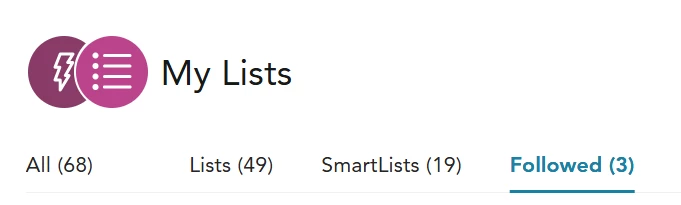
Followed Companies: D&B Hoovers users can “Follow” a company by clicking a badge on company profiles, search results, and lists and receive timely Notifications for that company. Any company that has been followed by a user will qualify for inclusion in SmartFeed whenever timely updates exist. The user can review the list of Followed Companies at on the Lists page and unfollow any companies that are no longer relevant.
Buying Team: Contact updates will appear in the SmartFeed when you have created a Buying Team on the Personalization tab and set it as a default. Confirm that you have created a Buying Team at https://app.hoovers.dnb.com/preferences/personalization and the most relevant team has been selected as a default. (Look for the solid star icon.)
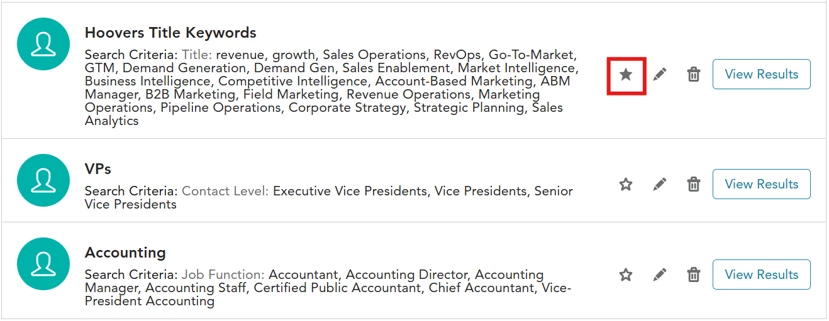
When configuring a Buying Team, a D&B Hoovers user is expected to create a contact search template using words and phrases that often appear in the job title of a key decision maker or influencer in sales discussions. You can alternatively select the Job Function and/or Seniority of an ideal contact for outreach. The “View Results” button to the right of a Buying Team allows you to preview a set of search results containing contacts with job titles that are returned by your Buying Team query. Please note that this “View Results” function works independently from Territory and will run a query for all contacts that match your Buying Team configuration.
If your Buying Team is too specific, the number of companies available on the SmartFeed could be limited to the limited number of companies in your Territory with an employee matching your configuration. If your Buying Team settings are too broad, you may see Buying Team Highlights for contacts that are not ideal for outreach. For the best results, use the Title Contains field by itself or the Job Function / Contact Level fields in combination. Requiring specific keywords along with job function or seniority is needlessly restrictive and will prevent you from seeing interesting prospects on your SmartFeed.
Configure Your Feed: Company attributes and buying signals available in D&B Hoovers can be highlighted on the SmartFeed with Configure Your Feed settings. Be sure to submit your preferences to emphasize important company attributes within your Territory without filtering out potential prospects.
For example, if you have success closing deals with companies in the Banking industry with 100+ employees, make those selections in the Company Size and Industries options and save them to your preferences. Prospects matching those selections receive a boost in the SmartFeed rankings and will be more likely to appear at the top of your personalized feed. (You will still see companies not matching those preferences in the SmartFeed.)
To receive the most timely and relevant updates in your SmartFeed, please give special attention to these Configure Your Feed settings:
- Investigate the Triggers section in the Configure Your Feed section to select up to 10 types of company news Triggers that you want to monitor in your SmartFeed. Your selections will be labeled as Key Triggers on the SmartFeed and will also receive a boost in the rankings.
- If you have purchased the Visitor Intelligence add-on and configured multiple Page Categories to organize the visits to your corporate website, you can select up to 10 Page Categories in the Configure Your Feed section to highlight on the SmartFeed and receive a further boost in the rankings. If you do not select any Page Categories, SmartFeed will include updates for all web visits.
The options in the Configure Your Feed section will vary depending on which add-ons you have included in your D&B Hoovers subscription. Please check with your representative to discuss adding Technology Insights, Visitor Intelligence, D&B Buyer Intent, or Bombora to your package.
If you are seeing irrelevant updates or do not see these kinds of updates at all, confirm that you have visited My Account > User Preferences > Personalization and selected the most relevant options for each attribute.
Why Don’t I See More Companies in My SmartFeed?
Your SmartFeed will be populated by companies in your configured Territory with attributes and buying signals suggesting that outreach is appropriate. Be sure to double-check the settings on My Account > User Preferences > Personalization to confirm that they match your requirements.
If your Personalization selections look accurate and your SmartFeed remains brief or empty, here are some items to keep in mind:
- Your Territory defines the companies eligible your SmartFeed, combined with any Followed companies that are not included in your Territory. If you have a very small Territory, D&B Hoovers may have difficulty identifying buying signals or contacts to display in the SmartFeed.
- The configured Buying Team is a significant source for SmartFeed updates, as you will be notified when new contacts on the Buying Team are identified and get a shortcut to the subset of employees matching your configuration. If your Buying Team is too specific and unlikely to return any matches, you may not see many prospects on your SmartFeed. Consider expanding your Buying Team query to increase the number of prospects on SmartFeed.
- If your Territory is made up of very small companies not often mentioned in business news, D&B Hoovers Triggers will rarely be present so fewer updates will be available for SmartFeed to aggregate and display. Larger, more visible companies are much more likely to see Trigger updates.
- The D&B Hoovers add-ons for Visitor Intelligence, Bombora, or D&B Buyer Intent will integrate date-stamped intent data into your SmartFeed. For example, Visitor Intelligence matches your anonymous corporate website traffic with the D&B Hoovers database, allowing SmartFeed to highlight companies in your Territory after they visit your website. However, it remains true that larger, more visible companies are much more likely to generate intent data. (Please check with your representative to discuss adding Visitor Intelligence, D&B Buyer Intent, or Bombora to your package.)
- If you have defined your Territory with filters (such as a geographic region) instead of a list of companies, the presence of recent Triggers or Visitor Intelligence data is required before a company will qualify for inclusion in SmartFeed. Please check with your representative to discuss adding Visitor Intelligence to your package.