

Corporate Family Report
NAVIGATE THE ORGANIZATION TO REVEAL OPPORTUNITIES
The Corporate Family Report provides a comprehensive look at the corporate hierarchy and organizational structure for this company.
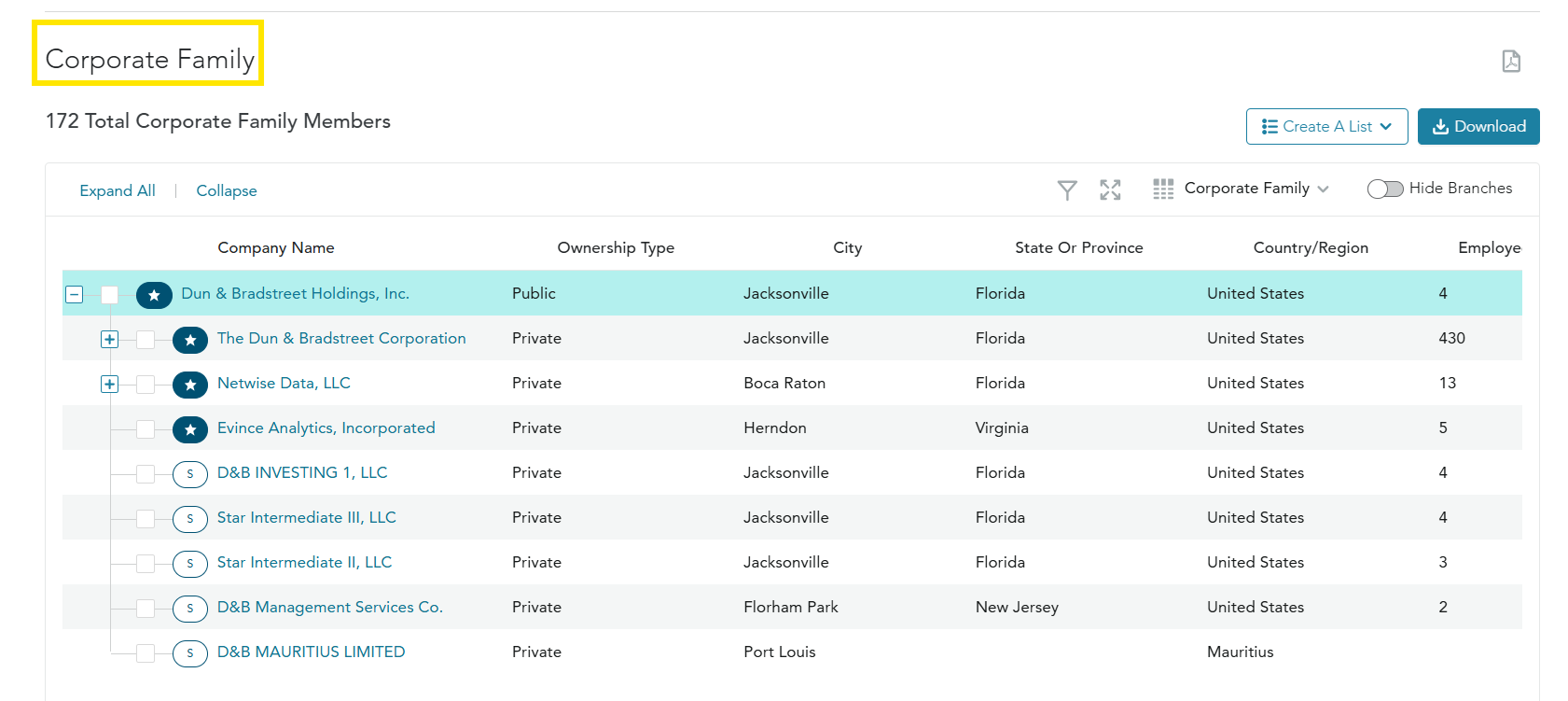
Expand/Collapse Sections
Click the +/- symbols to expand or collapse a parent or subsidiary and all its immediate child locations.
Filter Corporate Family
Click the funnel icon to apply any filters from Search & Build a List to focus your view.
Hide Branches
Toggle to hide branches for easier navigation of larger trees.
Entity Type Indicators
Each location of the Corporate Family is branded with an Entity Type indicator, so you can quickly recognize which locations have decision-making abilities within the tree. For example, a branch entity may not have the purchasing power that its parent or a subsidiary might
|
 |
 Represents a Subsidiary within the Family Tree |
 Represents a Branch within the Family Tree |
 Represents a Headquarters location. This designation is assigned to parent locations that have child entities. |
 Represents a Decision HQ location within the Family Tree. Our predictive indicator identifies the locations and associated contacts in a company’s family tree that make buying decisions, so you can target outreach to the locations and decision makers with buying power. (Available in select subscription types.) |
APPLY FILTERS TO FOCUS ON OPPORTUNITIES
Apply Filters
Any of the search filters on the Search & Build a List form can be used to filter the tree. For example, you can add location filters to reveal opportunities in your territory.
A Filtered Tree
When search criteria are applied to a Corporate Family Report, all family members that match the criteria will be displayed in the tree. In addition to the tree members that matched the entered search criteria, the parents of those tree members are displayed in grey text to maintain the hierarchy structure.
Results Count
Displays a count of all matching results.
Clear Filters
Click Clear to remove applied filters.
Create A List / Add To List
Select the checkbox next to an entity to add it to an existing list or create a new list. The Create A List menu can be found on the right.
Download
Select the individual items you want to download or download all of your filtered results.