

Instant meeting briefs organized by the D&B AI Assistant
Combining trusted D&B data with the power of AI, the D&B AI Assistant delivers sourced and explainable insights sellers can rely on, driving stronger conversations and higher win rates. AI Assistant (activated for Focus and Predict packages) can be leveraged to instantly create icebreakers or re-engage stalled deals with fresh insights and triggers, transforming our trusted intelligence into actionable, in-the-moment guidance.
Customize Your Call Prep
The D&B AI Assistant must know background details about the products and services you sell before it can generate meaningful insights and outreach strategies for your hottest prospects. To prepare your D&B Hoovers account to use AI Assistant, log in and visit the User Preferences section, where you will see the D&B AI Settings tab as an option. On that tab, enter your company name and answer questions about what you do and what problems your product solves. These settings give AI Assistant the background it needs to bring back relevant sales intelligence. Pro Tip: Save time by copying and pasting product value statements from your internal marketing materials.
If you have used SmartMail AI in D&B Hoovers to draft a response-oriented email message tailored to your offering, your account may already be optimized to start generating Call Prep. Take a moment to verify that the submissions on User Preferences > D&B AI Settings are current, so AI Assistant knows exactly what you need for upcoming calls.
Using Prompts to Generate Call Prep
Once you have submitted the D&B AI Settings as described above, your account is ready to automate your Call Prep. In the top nav bar in D&B Hoovers, click the Ask AI button at the top right of the screen to open D&B AI Assistant.
Generation of Call Prep details requires the user to enter a conversational prompt directing AI Assistant to query the D&B Hoovers database to prepare for a call with a specific company. After you submit a prompt, AI Assistant will locate recent news, intent data, industry trends, and other buying signals that you can leverage in our outreach and organize that data in a clear, easy-to-navigate format you can use as a starting point.
These prompts would all return different kinds of information based on your specific needs:
- Prep me for a call with [company name]
- Focus on industry trends for an introductory call with [company name]
- For [company name] give me a list of top marketing execs and a brief talk track
- Find news from the past two weeks to prep for a follow-up call with [company name]
Ask AI Assistant follow-up questions to expand, constrain, or reformat the Call Prep guidance that you receive. Add details like “cold call” or “follow-up call” or “former customer” to give AI Assistant the context it needs to provide the relevant and actionable recommendations.
Pro Tip: On your personal SmartFeed, look for the “Prep me for a call” button for each hot prospect. Click that button to open AI Assistant and automatically generate Call Prep details for that company.
AI Assistant Feature Spotlight
After you confirm your settings at User Preferences > D&B AI Settings, you can start using D&B AI Assistant without any dedicated onboarding, especially if you are familiar with other AI assistants and chatbots.

To make the most of your experience, keep an eye out for these useful features within AI Assistant:
- Start New Conversation: The chat balloon icon in the top toolbar will move your current conversation with AI Assistant to your history and allow you to start with a blank canvas for your next prompt. Clicking this button does not delete the conversation, and you can return to it later in Show History.
- Show History: The clock icon reveals your recent AI Assistant history, including conversations from today and recent days.
- To return to your current conversation, click the x icon at the top right
- To search your chat history, click the magnifying glass icon
- If you would like to delete a chat from your history, hover over the name and click the three dots to the right.
- Maximize Chat: By default, AI Assistant will be displayed in a drawer on the right side of the D&B Hoovers page. To expand the content from edge to edge of your browser screen, click the icon with the arrow pointing both ways. In this maximized view, all the tools in the top navbar will be relocated to a left-hand menu. You can return to the drawer view by clicking the Minimize Chat icon at the top right with two arrows pointing at each other.
- Close Chat: The x icon at the top right of the AI Assistant navbar will close the drawer where the tool appears. Closing a chat does not delete its content, and you can return to it by clicking the Ask AI button again later.
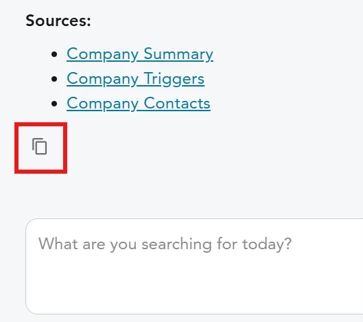
- Sources: AI Assistant aggregates and organizes information from across the D&B Hoovers data sources to create your Call Prep. Look for linked sources at the bottom of your Call Prep details to verify the information provided by AI.
- Copy Text: To copy the text of a response in your conversation to your clipboard, look for the copy text icon at the end of the response. You can then paste the text into an email or a document to save for later use. Please note that this button will not copy text across the whole conversation. You can scroll back to a previous response in the current conversation or return to Chat History to copy previous insights to your clipboard.
D&B AI Assistant is powered by generative AI. For more information on our commitment to Responsible AI at Dun & Bradstreet, and to view the Hoovers SmartMail AI System Card please visit the Privacy, Data Transparency, and AI Trust Centre. Please review all generated insights prior to outreach as AI Assistant may display inaccurate or incomplete results.